
Table of Contents
- What Is IPTVEditor?
- Key Features of IPTVEditor
- Benefits of IPTVEditor
- How IPTVEditor Works
- IPTVEditor Dashboard Overview
- IPTVEditor Pricing
- IPTVEditor Pros and Cons
- IPTVEditor vs Competitors
- Best Practices for Managing IPTV Playlists
- Common IPTVEditor Problems and Solutions
- IPTVEditor Tips
- Privacy and Security
- Frequently Asked Questions
- Conclusion
What Is IPTVEditor? {#what-is-iptveditor}
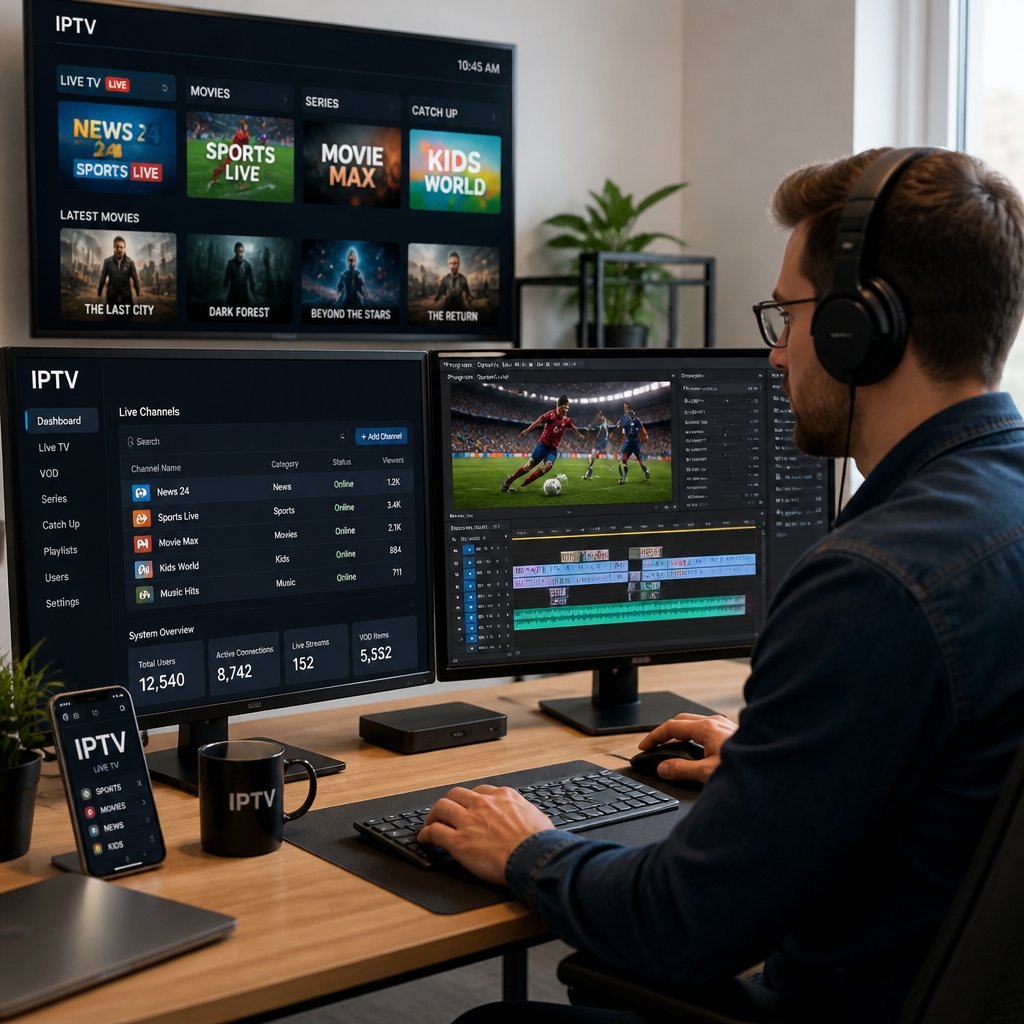
If you’ve ever tried to manage a large IPTV playlist by hand, you already know the problem: hundreds of channels with inconsistent names, missing logos, no groups, and a program guide that doesn’t line up with anything. IPTVEditor is a playlist management platform built to solve exactly that. It gives you a web-based dashboard where you can clean up, organize, and customize M3U playlists and their associated EPG (Electronic Program Guide) data, then export the polished result for use in your preferred media player.
IPTVEditor isn’t a content source, and it doesn’t stream anything itself. It’s a management layer that sits between your raw playlist data and the app you actually watch on — think of it as the editing suite for your channel list, rather than the TV itself. If you manage a personal media server, maintain a playlist from a service you’re legitimately subscribed to, or just want a tidier viewing experience across your devices, this is the kind of tool built for that job.
In this guide, we’ll walk through what IPTVEditor does, how its dashboard works, what it costs, how it stacks up against alternatives like xTeVe and Threadfin, and how to avoid the most common headaches people run into while organizing playlists.
Overview
At its core, IPTVEditor takes a raw M3U file or URL and turns it into something structured: named groups, consistent channel logos, sorted categories, and EPG data mapped to the right channels.
Main Purpose
The platform exists to reduce the manual work of playlist upkeep. Instead of editing playlist files by hand in a text editor, you get a visual interface for renaming channels, merging duplicate entries, assigning logos, and building custom groups.
Supported Playlist Formats
IPTVEditor primarily works with M3U and M3U8 playlist formats, and supports XMLTV for EPG data — the two most widely used standards in the IPTV and media server space.
Typical Use Cases
- Personal media server operators who want a cleaner channel list.
- Users consolidating multiple legitimate playlist sources into one organized view.
- Anyone who wants consistent channel logos and accurate program guide data across devices.
Key Features of IPTVEditor {#key-features}
Playlist Editing
The core feature: import an M3U playlist and edit channel names, order, and metadata directly through the dashboard rather than editing raw text files.
Channel Grouping
Create custom groups (e.g., “News,” “Sports,” “Documentaries”) and assign channels to them, making navigation in your media player far more intuitive.
Favorites Management
Mark frequently watched channels as favorites so they’re easy to find without scrolling through an entire list.
Logo Management
IPTVEditor can automatically match channels to a logo database, or let you manually upload and assign custom logos — a small detail that makes a big difference in how polished your final playlist looks.
XMLTV EPG Support
Attach XMLTV guide data to your playlist so your media player can display show titles, times, and descriptions alongside each channel.
Automatic Updates
Playlists and EPG data can be set to refresh automatically on a schedule, so you’re not manually re-importing data every time something changes upstream.
Channel Filtering
Filter out channels you don’t want in your final export — useful for trimming down large playlists to just what you actually watch.
Backup Options
Save configurations and organized playlists so you can restore your setup quickly if something goes wrong or you switch devices.
User-Friendly Dashboard
A clean, browser-based interface means no command-line editing or manual XML wrangling — most tasks are drag-and-drop or point-and-click.
Cloud Management
Because IPTVEditor operates through a web dashboard, your organized playlist and settings are accessible from any device with a browser, rather than being tied to one local file.
Benefits of IPTVEditor {#benefits}
Easier Playlist Organization
Instead of manually editing raw M3U text, you get visual tools for sorting, grouping, and renaming — a much faster workflow for anyone managing more than a handful of channels.
Cleaner Channel Lists
Removing duplicates, standardizing names, and filtering unwanted entries results in a playlist that’s actually pleasant to browse.
Improved Navigation
Well-organized groups and favorites mean less scrolling and searching in your media player of choice.
Better EPG Integration
Properly mapped XMLTV data means your program guide actually matches your channels — no more guide entries that don’t line up with what’s playing.
Personalized Viewing Experience
Custom groups, logos, and favorites let you tailor the final playlist to how you and your household actually watch, rather than accepting a generic, unsorted list.
How IPTVEditor Works {#how-it-works}
At a high level, using IPTVEditor follows a consistent workflow:
- Importing M3U Playlists — Add a playlist by pasting a URL or uploading a file from a source you’re authorized to use.
- Organizing Channels — Sort, rename, and remove duplicate or unwanted entries.
- Assigning Logos — Apply automatic or custom logos to give channels a consistent look.
- Configuring XMLTV EPG — Link guide data so schedules display correctly against each channel.
- Exporting the Updated Playlist — Generate a cleaned-up M3U (and associated EPG) file or URL to load into your media player of choice.
This workflow is intentionally generic — IPTVEditor doesn’t care where your playlist originates, only that you bring your own source. It’s the same process whether you’re organizing a personal media server’s channel list or a playlist from a service you’re properly subscribed to.

IPTVEditor Dashboard Overview {#dashboard-overview}
Interface
The dashboard is organized around a central playlist view, with a sidebar for navigating between playlists, groups, EPG settings, and account options.
Main Menus
Expect menus for Playlists, Groups, EPG/XMLTV, Logos, and Settings, each handling a specific part of the organization workflow.
Settings
General settings cover update frequency, export formats, and account preferences like notification options.
Playlist Management Tools
Bulk actions — such as selecting multiple channels to move, rename, or delete at once — are typically available, which saves significant time on large playlists.
Customization Options
Beyond basic organization, you can typically adjust sort order, group visibility, and default logo sources to match your preferences.
IPTVEditor Pricing {#pricing}
Available Plans
IPTVEditor, like most SaaS-style playlist tools, typically offers tiered plans — often a limited free or trial tier alongside paid subscription levels that unlock higher playlist limits, faster updates, or additional customization features.
Features Included
Paid tiers commonly add things like:
- Higher limits on the number of playlists or channels managed
- Faster or more frequent automatic updates
- Priority support
- Additional EPG sources or logo database access
Value for Money
For casual users managing a single small playlist, a free or entry-level tier is often enough. Users managing multiple playlists, larger channel counts, or who rely heavily on EPG accuracy tend to get more value from a paid tier.
Who Should Choose Each Plan
- Free/Basic: Best for individuals with one playlist and modest organization needs.
- Mid-tier: Suited to users managing multiple sources or wanting faster refresh cycles.
- Higher tiers: Best for power users or households running several devices with complex group structures.
Because pricing and plan structures change over time, it’s worth checking IPTVEditor’s official website for the most current plan details before subscribing.
IPTVEditor Pros and Cons {#pros-and-cons}
| Pros | Cons |
|---|---|
| Intuitive dashboard for playlist editing | Requires a playlist source you supply yourself |
| Strong EPG/XMLTV mapping tools | Some advanced features may sit behind paid tiers |
| Automatic logo matching | Logo database coverage can vary by region |
| Bulk channel editing tools | Learning curve for very large playlists |
| Cloud-based, accessible anywhere | Depends on stable internet for cloud sync |
| Scheduled automatic updates | Occasional sync delays during peak usage |
IPTVEditor vs Competitors {#vs-competitors}
| Tool | Ease of Use | Playlist Editing | EPG Management | Cloud Features | Customization | Best Use Case |
|---|---|---|---|---|---|---|
| IPTVEditor | Very easy | Strong, visual | Strong XMLTV support | Yes | High | All-around playlist organization |
| Telly | Easy | Basic | Limited | Some | Moderate | Simple playlist viewing |
| M3U4U | Moderate | Good | Moderate | Yes | Moderate | Playlist hosting and merging |
| xTeVe | Moderate | Config-file based | Good | No (local) | High (technical) | Self-hosted, technical users |
| Threadfin | Moderate | Config-file based | Good | No (local) | High (technical) | Successor to xTeVe, self-hosted setups |
| Channels DVR | Easy | Limited to DVR scope | Strong | Local/server-based | Moderate | DVR-focused households |
| Jellyfin (playlist mgmt) | Moderate | Basic via plugins | Plugin-dependent | Self-hosted | High (open source) | Full home media server ecosystem |
IPTVEditor’s advantage over tools like xTeVe or Threadfin is accessibility — there’s no local server configuration or config-file editing required, which makes it far friendlier for non-technical users. Self-hosted tools like xTeVe, Threadfin, and Jellyfin offer more control for technically inclined users comfortable running their own server infrastructure, but come with a steeper setup curve.
Best Practices for Managing IPTV Playlists {#best-practices}
Organizing Channels
Group by category first (news, sports, entertainment), then alphabetize within each group for the fastest navigation.
Creating Groups
Keep group names short and consistent — overly granular categories tend to make browsing harder, not easier.
Managing Favorites
Limit your favorites list to channels you actually watch weekly; an overstuffed favorites list defeats its own purpose.
Keeping EPG Updated
Set automatic EPG refresh on a reasonable schedule (daily is typical) so guide data doesn’t drift out of sync with actual programming.
Backing Up Playlists
Export or save a backup of your organized playlist periodically, especially before making large structural changes.
Optimizing Performance
Remove channels you never watch — smaller, cleaner playlists load faster and are easier to maintain long-term.
Common IPTVEditor Problems and Solutions {#problems-and-solutions}
Playlist Import Issues
- Confirm the M3U URL or file is valid and accessible.
- Check for special characters or formatting errors in manually edited files.
Missing Logos
- Try triggering a manual logo re-match from the dashboard.
- Manually upload a logo if the automatic database doesn’t have a match for that channel.
EPG Synchronization
- Verify the XMLTV source URL is still active and correctly formatted.
- Force a manual EPG refresh if scheduled updates seem stalled.
Export Errors
- Double-check the selected export format matches what your target media player expects.
- Re-export after clearing any cached data if the file seems corrupted.
Slow Loading
- Reduce the number of channels or groups displayed at once.
- Clear browser cache if the dashboard itself feels sluggish.
Duplicate Channels
- Use bulk-select tools to identify and merge or delete duplicate entries.
- Rename channels consistently to make duplicates easier to spot.
IPTVEditor Tips {#tips}
- Set a consistent naming convention (e.g., “Country – Channel Name”) before organizing groups, so sorting stays clean as you add more channels.
- Schedule EPG updates during off-peak hours to avoid sync delays.
- Periodically prune unused channels to keep exports fast and lightweight.
- Back up your configuration before making bulk edits, in case you need to revert.
- Use favorites sparingly — reserve them for your true daily-watch list.
Privacy and Security {#privacy-and-security}
Account Security
Use a strong, unique password for your IPTVEditor account, and enable any available two-factor authentication option to reduce the risk of unauthorized access.
Data Backups
Regularly export and store backups of your organized playlists and settings, so a sync issue or account problem doesn’t cost you hours of organizational work.
Responsible Use
IPTVEditor is a management tool, and how it’s used depends entirely on the playlists you import. Treat it the same way you’d treat any software that handles account credentials — cautiously, and only with sources you trust.
Using Legally Authorized Playlist Sources
Because IPTVEditor doesn’t provide content itself, the responsibility for legality sits with the playlist source you choose to organize. Only import playlists from sources you have proper rights or authorization to use — such as your own personal media server, a service you’re legitimately subscribed to, or content you own. This article doesn’t recommend or endorse any specific content provider, and isn’t a substitute for legal advice if you’re unsure about a particular source’s licensing status.
Frequently Asked Questions {#faqs}
What is IPTVEditor? IPTVEditor is a web-based platform for organizing, editing, and managing IPTV playlists, including channel grouping, logo assignment, and EPG (XMLTV) integration.
Is IPTVEditor free? IPTVEditor typically offers a free or trial tier with basic features, alongside paid plans that unlock higher limits and additional tools. Check the official site for current pricing.
How do I edit an IPTV playlist? Import your M3U playlist into the IPTVEditor dashboard, then use the visual tools to rename channels, create groups, and remove duplicates.
Does IPTVEditor support XMLTV? Yes, IPTVEditor supports XMLTV format for mapping EPG (program guide) data to your channels.
Can I organize channels into groups? Yes, custom channel grouping is one of IPTVEditor’s core organizational features.
Does IPTVEditor support M3U playlists? Yes, M3U and M3U8 are the primary playlist formats IPTVEditor works with.
Is IPTVEditor beginner-friendly? Yes, its dashboard-based interface is designed to avoid manual file editing, making it accessible to non-technical users.
What are the best IPTV playlist editors? Options include IPTVEditor, M3U4U, xTeVe, and Threadfin, each with different trade-offs between ease of use and technical control.
Can IPTVEditor add channel logos? Yes, it supports both automatic logo matching and manual logo uploads.
Is IPTVEditor worth it? For users managing more than a small handful of channels, especially with EPG data, the time saved on organization often makes it worthwhile — particularly if you value a polished, well-organized channel list.
Can I use IPTVEditor on multiple devices? Since it’s cloud/dashboard-based, you can access and manage your playlist from any device with a web browser.
Does IPTVEditor update playlists automatically? Yes, scheduled automatic updates are supported for both playlist and EPG data.
What happens if my EPG data doesn’t match my channels? Check your XMLTV source mapping in the dashboard and trigger a manual refresh; mismatches are usually a mapping or source URL issue.
Can IPTVEditor merge multiple playlists? Many playlist management tools, including IPTVEditor, support combining multiple sources into a single organized list — check current feature documentation for specifics.
Does IPTVEditor work with self-hosted media servers? Yes, exported playlists from IPTVEditor can typically be loaded into self-hosted setups like Jellyfin or Plex, provided the player supports M3U/XMLTV import.
Is technical knowledge required to use IPTVEditor? No — unlike config-file-based tools like xTeVe or Threadfin, IPTVEditor’s dashboard is built for non-technical users.
How do I fix duplicate channels in my playlist? Use the bulk-select and merge tools in the dashboard to identify and consolidate duplicate entries.
Can I back up my IPTVEditor configuration? Yes, exporting and periodically saving backups of your playlist and settings is recommended best practice.
Does IPTVEditor support multiple languages or regions? Logo and EPG database coverage can vary by region, so availability may depend on your specific playlist’s country and language.
Is my data safe with IPTVEditor? As with any cloud-based account, using a strong password and available security features helps protect your account; always review the platform’s current privacy policy for specifics.
Conclusion {#conclusion}
IPTVEditor solves a real, practical problem: turning a messy, unorganized IPTV playlist into something clean, navigable, and properly matched with program guide data. Its dashboard-based approach to channel grouping, logo management, and XMLTV EPG integration makes it considerably more approachable than technical, config-file-driven alternatives like xTeVe or Threadfin, while still offering enough depth for users managing multiple playlists across several devices.
Whether IPTVEditor is the right fit for you comes down to how much playlist organization you actually need. If you’re managing a single small list, a simpler tool — or manual editing — might suffice. But if you’re juggling multiple sources, want consistent logos and accurate EPG data, or just want your channel list to feel less like a spreadsheet and more like a proper streaming experience, IPTVEditor’s feature set is built for exactly that.
As with any playlist management tool, the platform is only as good — and only as legitimate — as the sources you feed into it. Evaluate IPTVEditor based on your own organizational needs, and always use it with playlist sources you’re properly authorized to access.