
Introduction
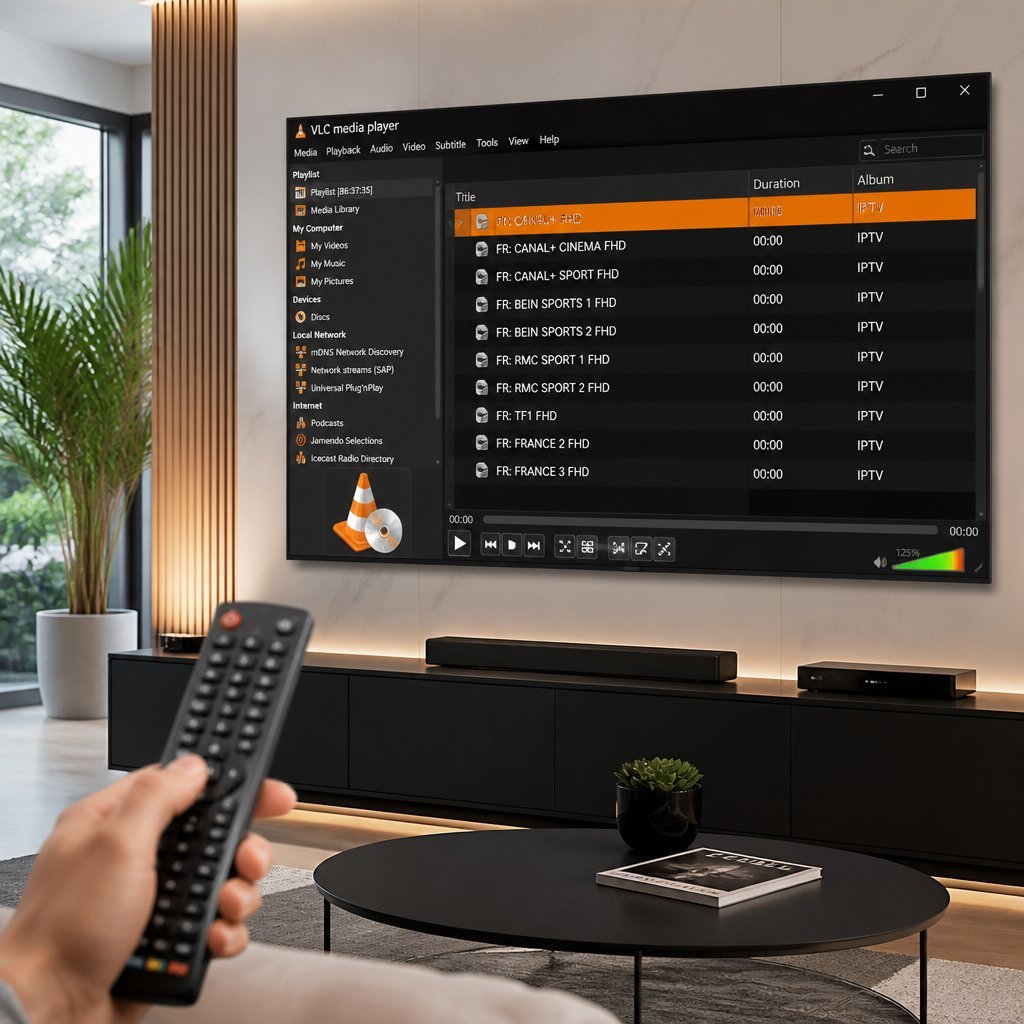
If you’ve ever wondered how to turn a simple media player into a powerful live TV streaming tool, IPTV VLC is the answer you’ve been searching for. Millions of users around the world rely on VLC Media Player to watch IPTV channels because it’s free, lightweight, and incredibly reliable.
IPTV VLC refers to the practice of using the open-source VLC Media Player to play IPTV (Internet Protocol Television) streams, including live channels, video-on-demand libraries, and catch-up TV content. Instead of installing a dedicated IPTV app, many users prefer VLC because it works across nearly every device and operating system without extra cost.
People choose VLC for IPTV streaming because it offers unmatched compatibility, supports popular playlist formats like M3U and M3U8, and rarely crashes even on older hardware. Combining IPTV with VLC Media Player gives you a distraction-free viewing experience, built-in recording tools, and total control over network settings.
In this guide, you’ll learn exactly what IPTV VLC is, how to set it up on every major platform, how to fix common streaming issues, and how VLC compares to dedicated IPTV players like TiviMate and IPTV Smarters Pro. By the end, you’ll be equipped to stream confidently and troubleshoot like a pro.
What Is IPTV?
IPTV, or Internet Protocol Television, delivers television content over the internet instead of through traditional satellite or cable signals. Rather than receiving broadcast signals via an antenna, IPTV transmits data packets through your internet connection, similar to how streaming services like YouTube deliver video.
How IPTV Works
An IPTV provider organizes channels into a server, which then streams that content to your device through a playlist file or app. Your player — in this case, VLC — connects to that server address and decodes the video and audio streams in real time.
Types of IPTV Services
Live TV streams broadcast channels continuously, just like traditional television, allowing you to watch sports, news, and entertainment as it airs.
Video on Demand (VOD) lets you choose movies or shows from a library and watch them whenever you like, similar to Netflix or Amazon Prime.
Catch-up TV allows you to rewind and watch programs that already aired, giving you flexibility if you missed a live broadcast.
What Is VLC Media Player?
VLC Media Player is a free, open-source multimedia player developed by the VideoLAN project. It has become one of the most trusted media players in the world, largely because it plays almost any file format without needing additional codecs.
History
VLC was first released in 2001 by a group of students and has since grown into a global project maintained by volunteer developers and the nonprofit VideoLAN organization.
Supported Platforms
VLC runs on Windows, macOS, Linux, Android, iOS, and even smart TVs, making it one of the most versatile media players available anywhere.
Features
VLC supports subtitle rendering, audio track switching, streaming protocols, screen recording, and advanced video filters, all within a single lightweight application.
Why VLC Is Trusted
Because VLC is open-source, its code is publicly reviewed by developers worldwide, which builds transparency and trust. It contains no ads, no spyware, and no hidden data collection, unlike many free alternatives.
Open-Source Advantages
Being open-source means VLC is constantly updated by a global community, ensuring bugs are fixed quickly and new features are added regularly without licensing fees.
Why Use IPTV with VLC?
Using IPTV VLC combinations offers several practical advantages over paid or proprietary apps.
Free software – VLC costs nothing to download or use, with no subscriptions or hidden fees.
Lightweight – It uses minimal system resources, making it ideal for older computers or low-powered devices.
High compatibility – VLC decodes nearly every video and audio codec natively, reducing playback errors.
Playlist support – It handles M3U and M3U8 playlists effortlessly, the standard format for most IPTV services.
Streaming stability – VLC’s buffering and caching system helps maintain smoother playback during network fluctuations.
Custom codecs – Advanced users can fine-tune codec settings for specific streaming needs.
Better playback performance – Hardware acceleration support reduces lag and improves frame rates on supported devices.
IPTV VLC Features
M3U Playlist Support
VLC natively reads M3U and M3U8 files, the most common playlist formats used by IPTV providers to organize channel lists.
Network Streaming
VLC can open direct network URLs, allowing you to stream without needing to download a playlist file first.
Subtitle Support
You can load external subtitle files or use embedded subtitles, with options to adjust sync timing and appearance.
Recording IPTV Streams
VLC includes a built-in recording feature, letting you save live streams directly to your device for later viewing.
Audio Synchronization
If audio and video fall out of sync, VLC provides simple keyboard shortcuts to adjust timing instantly.
Video Filters
Built-in filters let you adjust brightness, contrast, sharpness, and other visual settings during playback.
Hardware Acceleration
VLC can use your device’s GPU to decode video, reducing CPU load and improving performance on demanding streams.
Playlist Management
You can save, edit, and organize multiple playlists within VLC, making it easy to switch between IPTV providers.
How to Set Up IPTV VLC
Setting up IPTV VLC is straightforward, even for beginners. Follow these steps:
- Download and install VLC from the official VideoLAN website for your operating system.
- Open VLC Media Player and locate the “Media” menu at the top of the screen.
- Click “Open Network Stream” to bring up the streaming input window.
- Paste your M3U playlist URL or Xtream Codes link into the network URL field.
- Click “Play” to load the channel list and begin streaming.
- Save the playlist using the “Save Playlist to File” option so you don’t need to re-enter the URL each time.
If your provider uses Xtream Codes, you’ll typically enter a formatted URL containing your username, password, and server address rather than a direct M3U file.
IPTV VLC on Windows
On Windows, download the installer from the official VLC website, run the setup wizard, and launch the application. Use “Media > Open Network Stream” to paste your playlist URL, then click Play. Windows users benefit from VLC’s hardware decoding options found under Tools > Preferences > Input/Codecs for smoother 4K playback.
IPTV VLC on macOS
Mac users can download VLC directly from the App Store or the official website. After installation, open VLC, go to File > Open Network, and enter your IPTV link. macOS versions of VLC support the same playlist and streaming features as Windows, with slightly different menu placement.
IPTV VLC on Linux
Linux users can install VLC through their distribution’s package manager, such as apt install vlc on Ubuntu-based systems. Once installed, use the same Media > Open Network Stream process to load your IPTV playlist, and Linux users often benefit from lower system overhead during playback.
IPTV VLC on Android
The VLC app is available for free on the Google Play Store. After installation, tap the menu icon, select “Stream,” and enter your playlist URL. Android VLC has some limitations compared to desktop versions, including fewer advanced buffering controls and no native EPG (Electronic Program Guide) support.
IPTV VLC on iPhone and iPad
VLC for iOS is available on the App Store and supports network streaming through its built-in browser feature. Tap the network icon, enter your stream URL, and tap Connect. iOS VLC supports background audio playback but has more restricted file access due to Apple’s sandboxing policies.
Best IPTV Playlist Formats for VLC
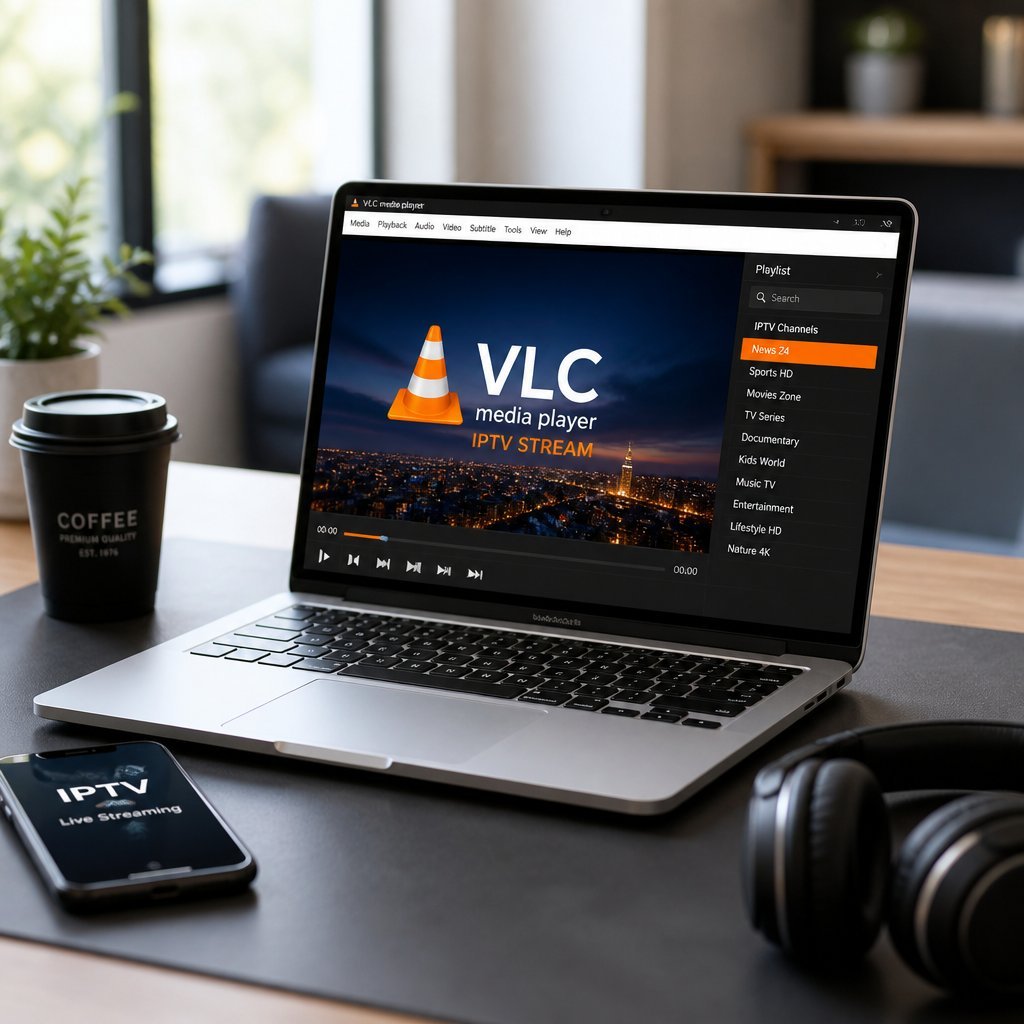
M3U is the most widely used playlist format, containing a simple list of channel URLs and metadata.
M3U8 is a UTF-8 encoded version of M3U, commonly used for HLS (HTTP Live Streaming) content.
XSPF is an XML-based playlist format that VLC also supports, though it’s less common among IPTV providers.
Network URLs allow direct streaming without a saved playlist file, useful for one-time viewing or testing a connection.
IPTV VLC Settings for Better Streaming
Cache Settings
Increasing VLC’s cache value under Tools > Preferences > Input/Codecs can reduce buffering on unstable connections.
Network Caching
Adjusting network caching to 1000–3000ms often smooths out playback interruptions caused by inconsistent internet speeds.
Hardware Decoding
Enabling hardware decoding (found in Input/Codecs settings) offloads processing to your GPU, reducing lag on high-resolution streams.
Audio Improvements
VLC’s audio normalization and equalizer settings can help balance sound levels across different IPTV channels.
Buffer Optimization
Fine-tuning buffer size prevents both excessive loading delays and choppy playback during peak network usage.
Common IPTV VLC Problems and Fixes
Buffering – Increase network caching values and check your internet speed; a stable connection above 15 Mbps is recommended for HD streams.
Playlist not loading – Verify the M3U URL is correct and hasn’t expired, and confirm your internet connection is active.
Black screen – Update VLC to the latest version, as outdated builds sometimes struggle with newer codec formats.
No audio – Check the Audio menu in VLC to ensure the correct audio track is selected for the stream.
Codec issues – Reinstall VLC or update it, since most codec problems are resolved by using the current release.
Freezing – Lower the video resolution setting if your device lacks the processing power for the stream.
Lag – Enable hardware acceleration and close unnecessary background applications competing for bandwidth.
Connection errors – Restart your router and confirm the playlist server isn’t experiencing downtime.
Playlist expired – Contact your IPTV provider to renew or refresh your subscription link.
IPTV VLC Tips for Better Performance
Use a wired Ethernet connection instead of Wi-Fi whenever possible for more stable streaming. Close other bandwidth-heavy applications while watching IPTV VLC channels. Regularly update VLC to benefit from performance improvements and security patches. Keep your playlist files organized and remove expired links to avoid confusion.
IPTV VLC vs Dedicated IPTV Players
| Feature | VLC | IPTV Smarters Pro | TiviMate | Kodi | Perfect Player | OTT Navigator |
|---|---|---|---|---|---|---|
| Ease of Use | Moderate | Easy | Easy | Moderate | Easy | Moderate |
| EPG Support | No | Yes | Yes | Yes | Yes | Yes |
| Playlist Support | M3U/M3U8/XSPF | M3U/Xtream | M3U/Xtream | M3U/Add-ons | M3U/Xtream | M3U/Xtream |
| Recording | Yes | Limited | Yes (Premium) | Via add-ons | No | Yes |
| Interface | Basic | Polished | Polished | Customizable | Basic | Polished |
| Ideal Users | Tech-savvy, casual viewers | Beginners | TV-focused viewers | Power users | Simplicity seekers | Android TV users |
VLC remains the best choice for users who want a free, no-frills option without needing an EPG, while dedicated apps suit those wanting a traditional TV-guide experience.
IPTV VLC Security Tips
Only use playlist sources from providers you trust, since malicious links can expose your device to security risks. Avoid downloading M3U files from unverified forums or unofficial websites, as these can occasionally bundle unwanted software. Always keep VLC updated to the latest version to patch any known vulnerabilities. Consider using a VPN for added privacy while streaming, especially on public networks.
Frequently Asked Questions (FAQ)
Is IPTV VLC free?
Yes, VLC Media Player itself is completely free and open-source, though your IPTV subscription may have separate costs depending on the provider.
Can VLC play M3U playlists?
Yes, VLC natively supports M3U and M3U8 playlist formats without requiring additional plugins.
Is VLC good for IPTV?
VLC is a solid choice for IPTV thanks to its stability, wide format support, and cross-platform availability, though it lacks a built-in EPG.
Does VLC support Xtream Codes?
VLC can play Xtream Codes streams if you input the correctly formatted network URL, though it won’t display an interactive guide like dedicated apps.
Why is IPTV buffering in VLC?
Buffering usually stems from slow internet speeds, low network caching settings, or server-side congestion from the IPTV provider.
Can VLC record IPTV?
Yes, VLC has a built-in recording feature accessible through the View menu’s advanced controls toolbar.
How do I add an IPTV playlist?
Open VLC, go to Media > Open Network Stream, and paste your M3U or Xtream Codes URL, then click Play.
Does VLC work on Android?
Yes, VLC for Android is available on the Google Play Store and supports network streaming, though with fewer advanced settings than desktop versions.
Is VLC better than IPTV Smarters?
VLC offers more flexibility and no ads, while IPTV Smarters Pro provides a more polished interface with EPG support — the better choice depends on your priorities.
Can VLC play live TV?
Yes, VLC can stream live TV channels through IPTV playlists or direct network URLs in real time.
Does VLC support subtitles for IPTV streams?
Yes, you can load external subtitle files or use embedded ones, with adjustable sync and formatting options.
Why does VLC show a black screen with IPTV?
This is often caused by outdated software or unsupported codecs; updating VLC usually resolves the issue.
Can I use VLC on a smart TV for IPTV?
Some smart TVs support VLC directly, though many users instead use dedicated IPTV apps designed for TV interfaces.
Is it legal to use VLC for IPTV?
VLC itself is fully legal software; legality depends on whether your IPTV provider has proper licensing for the content it distributes.
How do I fix VLC audio sync issues with IPTV?
Use the keyboard shortcuts J and K (or the Playback menu) to adjust audio delay in small increments until it matches the video.
Conclusion
IPTV VLC remains one of the most accessible and reliable ways to stream live television, thanks to VLC’s open-source foundation, cross-platform support, and zero cost. While it may lack the polished EPG interfaces of dedicated apps like TiviMate or IPTV Smarters Pro, its flexibility, stability, and built-in recording tools make it a favorite among casual and tech-savvy viewers alike.
Whether you’re on Windows, macOS, Linux, Android, or iOS, setting up IPTV VLC takes just a few minutes and works reliably once configured correctly. If you’re ready to start streaming, choose a reputable, properly licensed IPTV provider, follow the setup steps above, and enjoy smoother playback with the tips shared in this guide. Found this helpful? Share it with a friend who’s still struggling with buffering issues.